
How to Create an Online Quotation Ready to Send in Minutes
Learn how to create a professional online quotation that’s ready to send in minutes. This guide covers the essential information every quotation should include, how to choose and customise a Canva template, and what to check before sending it to a customer. You’ll also find practical tips for creating clear, easy-to-read quotations that save time, reduce back-and-forth, and help customers make decisions with confidence.
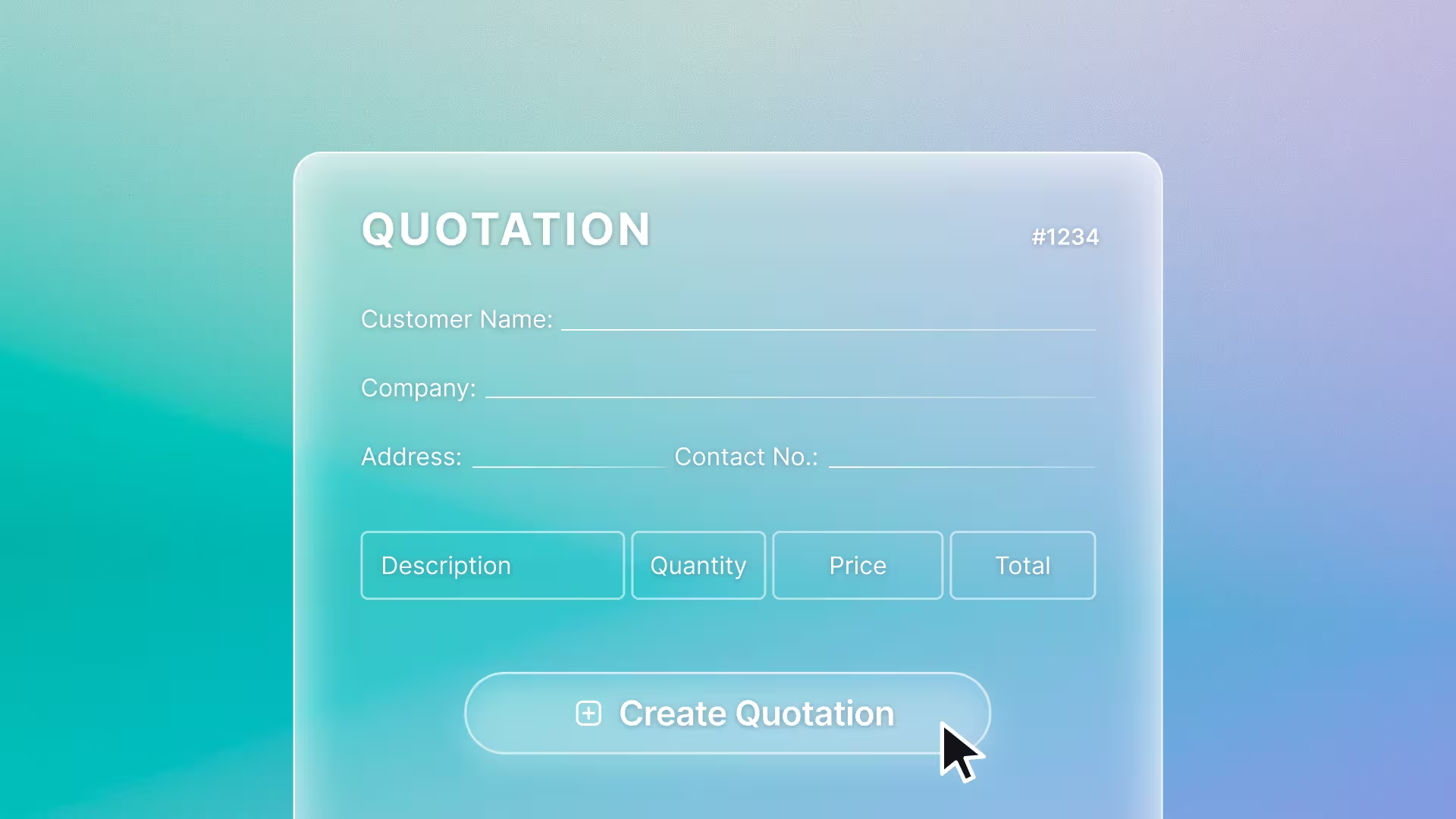
For many businesses, a quotation is a small document that influences a customer's decision more than you might think. It's the point where customers compare price, job details, timeline, and the credibility of the service provider. If a quotation looks rushed, is missing information, or is hard to read, the customer may have to ask follow-up questions several times, needlessly slowing down the sales process.
On the other hand, a well laid-out quotation with complete information that can be sent quickly makes a business look organized even before the work begins. Business owners, freelancers, sales teams, online shops, and service businesses in Thailand all need a way to create quotations that doesn't eat up time while still looking professional.
Why a polished-looking quotation makes it easier for customers to decide
Customers who request a quotation usually don't just want the final number. They want to see the full picture of what they'll receive, when they need to pay, what the terms are, and what steps to take next if they want to confirm the purchase or engagement. An easy-to-read document reduces uncertainty, especially for services, design work, construction, events, or sales involving multiple line items.
From the seller's side, a quotation with a standardized format also cuts down on repetitive work. There's no need to reformat the layout every time, pick fonts, or rebuild tables from scratch, and there's less chance of forgetting important information. Once a ready-to-use document structure exists, the team can simply swap in the client's name, item list, prices, and job-specific terms.
What information should an online quotation include?
Before choosing a template or starting the design, it helps to know that a good quotation should answer all of a customer's basic questions. Even a single-page document can look credible if the information is ordered correctly and doesn't leave the customer guessing.
Seller and contact information
The top of the document should include the business name, logo, address, contact channels, tax ID (if applicable), and the name of the person who prepared the quotation. This lets the customer immediately know who the document is from and how to get in touch. If a business doesn't yet have a dedicated documentation team, this section should be turned into a reusable template.
Product, service, price, and terms details
The heart of a quotation is the list of items offered to the customer. It should clearly separate the product or service name, quantity, unit price, discount, tax, and total. For service work, briefly state the scope, such as the number of revision rounds, what's included in the price, and what falls outside the scope, to prevent misunderstandings after the customer agrees.
Price expiry date and next steps
Another section that shouldn't be overlooked is the issue date, quotation number, price expiry date, payment terms, and the channel for confirming the order. Including this information lets the customer know the deadline for deciding and reduces repeated negotiation if the price or terms change later.
Create a simple online quotation quickly with Canva
The strength of creating an online quotation is that you don't have to start from a blank page. Canva offers editable document templates in a variety of styles, making it ideal for anyone who wants a good-looking document without being a designer. The following steps will help you get a quotation ready to send to clients faster.
Choose a template that fits your business type
Start by choosing a quotation template with a structure closest to your kind of work. For example, service businesses should choose a layout with space to explain the scope of work, while product-selling businesses may need an easy-to-read item table. For premium or corporate work, choose a clean, simple design with a limited color palette, since business documents should prioritize clarity over flair.
At this stage, you can choose a quotation template from Canva's template page and adjust it to match your brand right away. Starting with the right type of layout saves more time than picking a pretty design and having to rebuild the structure later.
Adjust the branding, colors, logo, and fonts for a credible look
After choosing a template, update the logo, colors, and fonts to match your brand. If your business already has brand guidelines, use your primary color, secondary color, and standard fonts so the quotation matches other materials such as your company profile, brochures, or sales posts. For teams that use Canva regularly, storing logos, colors, and fonts in a Brand Kit helps keep multiple documents consistent.
That said, credibility doesn't come from adding more elements. It comes from a layout that's easy to read, has appropriate breathing room, and highlights key information such as the total amount, payment terms, and price expiry date. If a document has too many colors, customers may get distracted from the information that matters.
Check the numbers and export a ready-to-use file
Before sending a quotation, carefully check the client's company name, contact name, date, document number, item list, prices, tax, discounts, and total. If figures were calculated in another system, cross-check the numbers again before downloading. A single mistake can mean having to resend the document and can dent the customer's confidence.
Once everything checks out, download it as a PDF to preserve the layout across different devices, or share it as a link for your team to review before sending it to the client. For business documents attached to emails, PDF is usually the safer and more formal format compared to a plain image file.
Tips for choosing a quotation template suited to Thai customers
Many readers in Thailand are used to quotations with clear information that can be read quickly and passed on to an internal approver right away. A good template should therefore have enough space for complete details without shrinking the text so small it's hard to read on mobile. If your customers often open documents on their phone, use an easy-to-read font, text color that contrasts with the background, and a table that isn't overly complex.
Another tip is to choose a template with a clear visual hierarchy: the header should immediately state that it's a quotation, followed by customer information, the list of products or services, and finally the total, terms, and contact information. If you need to send it to a corporate client, include space for an approver's signature or additional notes, so the document is easier to process internally.
For small businesses or freelancers, using a template doesn't mean the document has to look the same as everyone else's. By simply adjusting the color scheme to match your brand, clarifying service descriptions, and keeping a consistent look, a quotation can appear professional without needing to hire a designer every time.
Mistakes to avoid before sending a quotation
The first mistake is including too little detail, for example, listing only a service name and price without explaining what's included. The customer may interpret it differently from the seller, causing problems once the work begins. The second mistake is using exaggerated claims, such as guaranteeing a definite result for work that depends on many external factors. Use straightforward language and state conditions appropriately instead.
The third mistake is not specifying a price expiry date, especially for businesses whose costs change with raw materials, travel expenses, or exchange rates. The final mistake is accidentally sending a file that can still be edited. If you want the customer to see the final version, export it as a PDF and keep the original file for your own edits.
Creating an online quotation that's ready to send in minutes isn't just about speed. It's about making the sales process look organized and reducing customer hesitation. If you know what information to include, choose a template suited to your business type, keep your branding consistent, check all the numbers, and export a file that's easy to open, a single page can build a lot of confidence.
Ready to simplify customer conversations and sales enquiries? Start your free Zaapi trial
