
Introducing Ticket Fields: structured data, finally living in your Inbox
Ticket Fields bring structured data directly into every Zaapi Ticket, giving support teams a better way to capture and manage customer information. Instead of relying on Notes or Labels, teams can record data in a consistent format that can be filtered, reported on, and used in automations. Combined with the Zaapi Inbox interface, Ticket Fields help agents work with full customer context while reducing manual processes. From complaint tracking and refunds to sales qualification and returns management, structured data unlocks more efficient support operations. The result is cleaner workflows, more accurate reporting, and better customer experiences at scale.
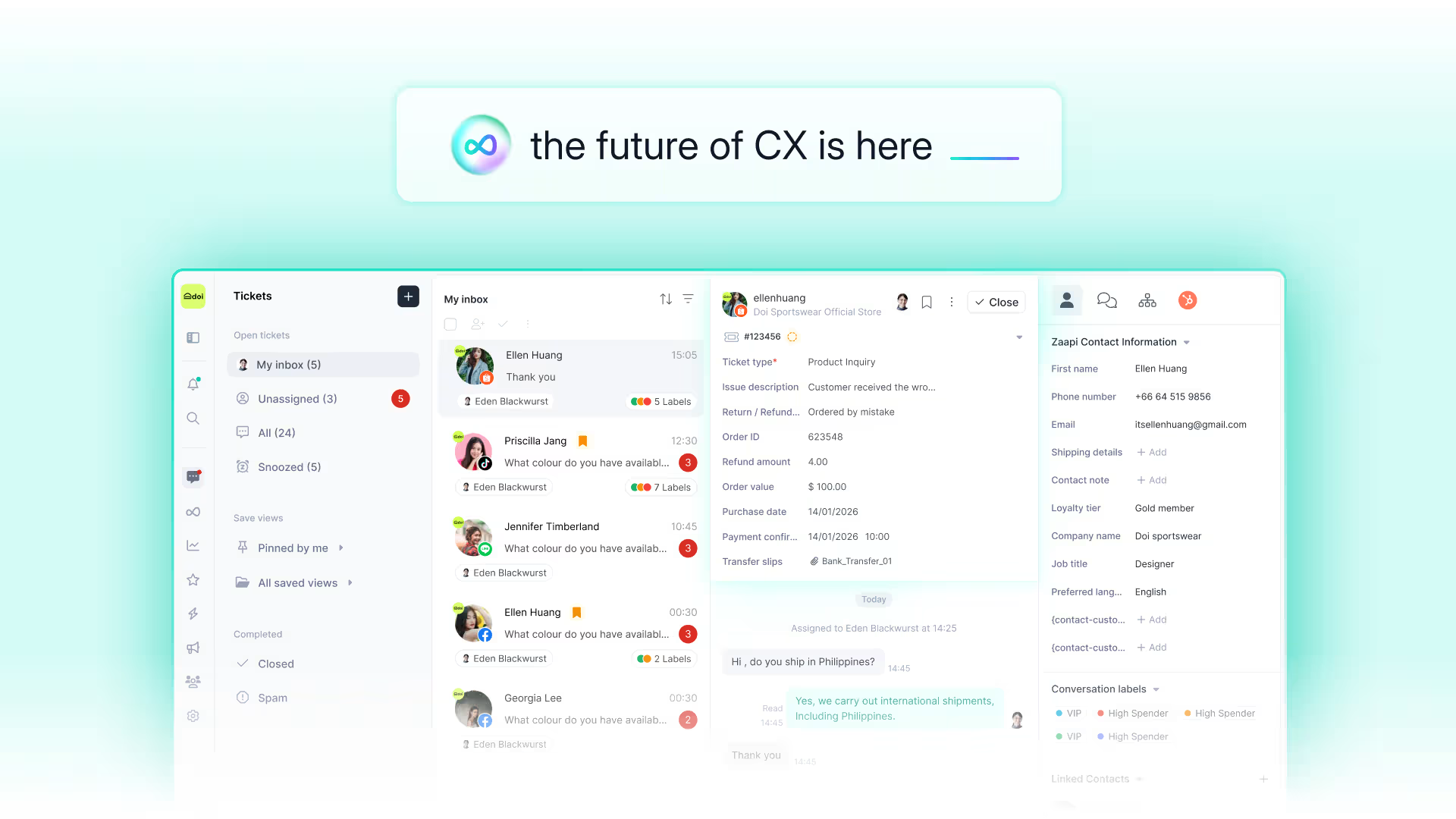
For most of Zaapi's life, the only ways to add context around a Ticket have been Labels and Notes. Both are useful, but neither is enough when you actually want to measure what's happening across your conversations.
If a customer's order value, complaint category, or refund amount lives in a Note, it can't be filtered, reported on, or used in an automation.
That's why we've shipped Ticket Fields: structured, typed data attached to every Ticket, configurable at the workspace level, and usable across Inbox filters, Flow Builder conditions, exports, and analytics.
Understanding the Zaapi Inbox Interface
When you open a Ticket, the conversation shows every sent and received message, as well as any internal notes and ticket activity, like assignments and status changes.
To the right of the conversation is the ticket sidebar, where you'll find the ticket details, customer profile, ticket history, and data from your connected apps that's related to the conversation.

1. Ticket header
The ticket header is where you can take key actions on your ticket, like:
- Updating ticket status
- Setting priority
- Assigning the ticket to an agent or team
2. Ticket conversation
The conversation thread shows the full message history between your team and the customer in chronological order.
It also shows:
- Ticket events
- Assignment updates
- Internal notes
- Automations triggered on the ticket
Before replying to a customer, reading through the full ticket conversation can help agents understand the full context of the issue.
3. Message composer
Use the message composer at the bottom of the page when you’re ready to reply to your customer.
From the message composer, you can:
- Send replies
- Leave internal notes
- Apply macros
- Add attachments
4. Ticket sidebar
The ticket sidebar appears on the right-hand side of every ticket and updates dynamically for every customer conversation.
Inside the sidebar, agents can view:
- Ticket details
- Ticket Fields
- Customer profile
- Previous Tickets
- Orders and e-commerce data
- Connected integrations
This helps agents resolve customer issues without switching between tools.
What a Ticket Field actually is
A Ticket Field is a piece of structured data with a defined type.
Instead of typing:
"refund of around 1,200 baht"
Agents can enter:
- Refund Amount → 1200
Because the field is structured, teams can:
- Filter Tickets
- Trigger automations
- Export clean reports
- Track support trends more accurately
Fields live at the top of the conversation thread, just below the conversation name.
The structure: 11 custom types, 4 system types
You can choose from 11 custom field types when configuring fields:
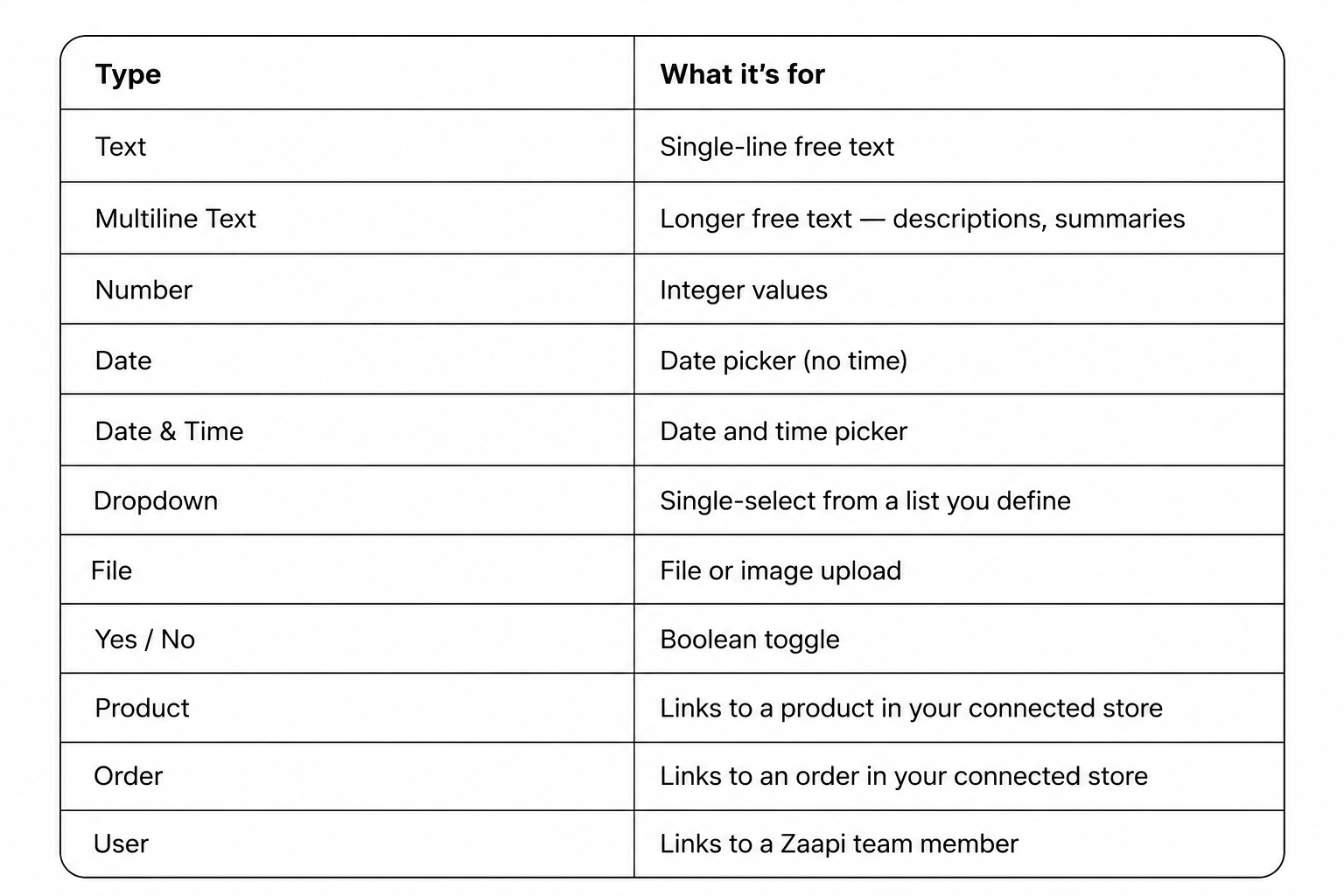
The rule of thumb: pick the most specific type for the data. Don't use Text for a number — you'll regret it the moment you try to filter, sort, or sum it.
On top of those, every Ticket also carries four system-generated fields that Zaapi populates automatically:
- AI CSAT — the satisfaction score collected by the AI Agent at the end of a conversation
- AI Summary — an AI-generated summary of the conversation
- Conversion Value — revenue attributed to the Ticket when a sale is tracked
- Is Converted — whether the Ticket resulted in a sale
System fields can't be deleted or edited, but they show up in the same place as your custom fields and can be filtered, exported, and used in Flows just like everything else.
Setting them up
Only Owners and Admins can create or edit Ticket Fields. From the sidebar:
- Settings → Ticket Fields
- Click Add field
- Enter a Name (what agents will see)
- Optionally add a Description to give agents a hint about what to put in
- Choose a Type — and if it's Dropdown, enter the list of options
- Save
That's it. The field will appear on every Ticket in your workspace immediately.
A few configurations worth knowing about:
Required vs optional. By default, fields are optional. Toggle Required on and agents can't Resolve a Ticket until that field has a value. There's no override — not even for Admins. If there's a legitimate scenario where the field doesn't apply, add a "Not Applicable" option to the dropdown so agents always have something valid to pick.
Reordering. The order of fields on the Ticket panel matches the order in Settings. Drag the handle (⋮⋮) to rearrange. Put the most-used fields at the top.
Common use cases
Here are a few setups we see customers running, to give you a sense of what's possible:
Complaint tracking for a fashion retailer. A Dropdown called Complaint Category with options like "Damaged on arrival", "Wrong size", "Wrong colour", "Late delivery", "Other". A Multiline Text field called Resolution Notes. A Yes/No called Compensation Offered. A Number called Compensation Value. Now the team can pull a weekly export and answer: which complaint categories cost us the most, and which channel they came from.
Refunds workflow. A Dropdown called Issue Type including "Refund request" as one option. A Number called Refund Amount, set to conditionally display only when Issue Type = Refund request. A Date field called Refund Processed On. A User field called Approved By. The Flow Builder then auto-routes any Ticket where Refund Amount > 5,000 THB to the manager team.
Pre-sales qualification. A Dropdown called Lead Source with options like "Instagram DM", "LINE OA", "WhatsApp", "Marketplace". A Product field called Product Interest. A Yes/No called Sample Requested. A Date called Follow-up Date. Sales pulls weekly reports by lead source and product to see what's converting.
Returns logistics. A Dropdown for Return Reasons. An Order field linking the original order. A File field called Return Photo. A Date called Return Received Date. A Yes/No called Restockable.
The pattern in all of these is the same: capture the data once, in the right shape, and you get filter, flow, and report capability for free.
How is this different from Labels?
Labels and Ticket Fields both add context to conversations, but they work differently.
Labels
Labels are applied at the Conversation level.
Examples:
- VIP
- Wholesale
- Pre-sales lead
Labels stay attached across multiple Tickets.
Ticket Fields
Ticket Fields are applied at the Ticket level.
Examples:
- Refund Amount
- Issue Type
- Resolution Notes
Ticket Fields describe one specific support session.
Where Ticket Fields work across Zaapi
Once Ticket Fields are populated, they can be used across the platform:
Inbox filtering
Filter Tickets by field values and save filtered views.
Flow Builder
Use field values in automations and routing rules.
Analytics & exports
Export structured Ticket data into CSV reports for analysis.
